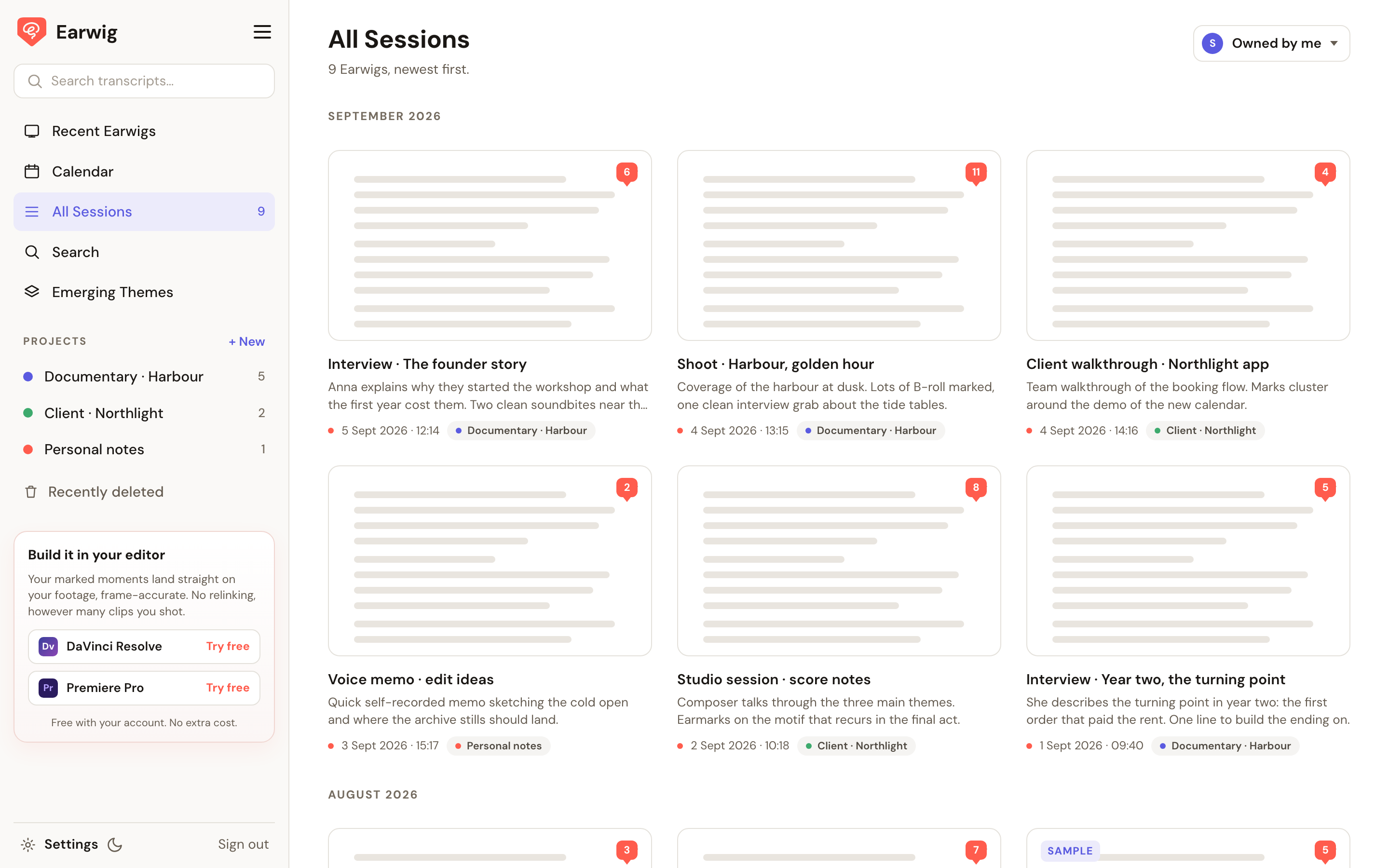
Both Earwig Sync plugins now run on Windows. The DaVinci Resolve plugin and the Premiere Pro panel, the same ones Mac editors have been using, are on the plugins page today with a Download for Windows button next to each.
What you get
The Resolve plugin is one installer. Run it, click Yes once, and Earwig shows up in Resolve's Workflow Integrations menu. Card in, sync, and the markers land on the timeline at the moment they were tapped on set.
The Premiere panel is a small zip with an install script inside. Double-click it, restart Premiere, and the panel is under Window, Extensions. This version also does something the Mac panel got this week: it can write the markers straight onto whichever sequence you have open, which is the thing multicam editors asked for.
Signing in
Nothing new to learn. The plugins sign in the same way the app and the web app do: your email, a six-digit code, and your shoots are there. If your shooter has already shared a session with you, it is waiting.
Two things to know on Windows
The Resolve installer is not code-signed yet, so Windows may show a SmartScreen notice the first time. Click More info, then Run anyway. Signing is in hand.
The Resolve plugin needs ffmpeg for the audio sync. If it is not on your machine, the first run offers to fetch it for you.
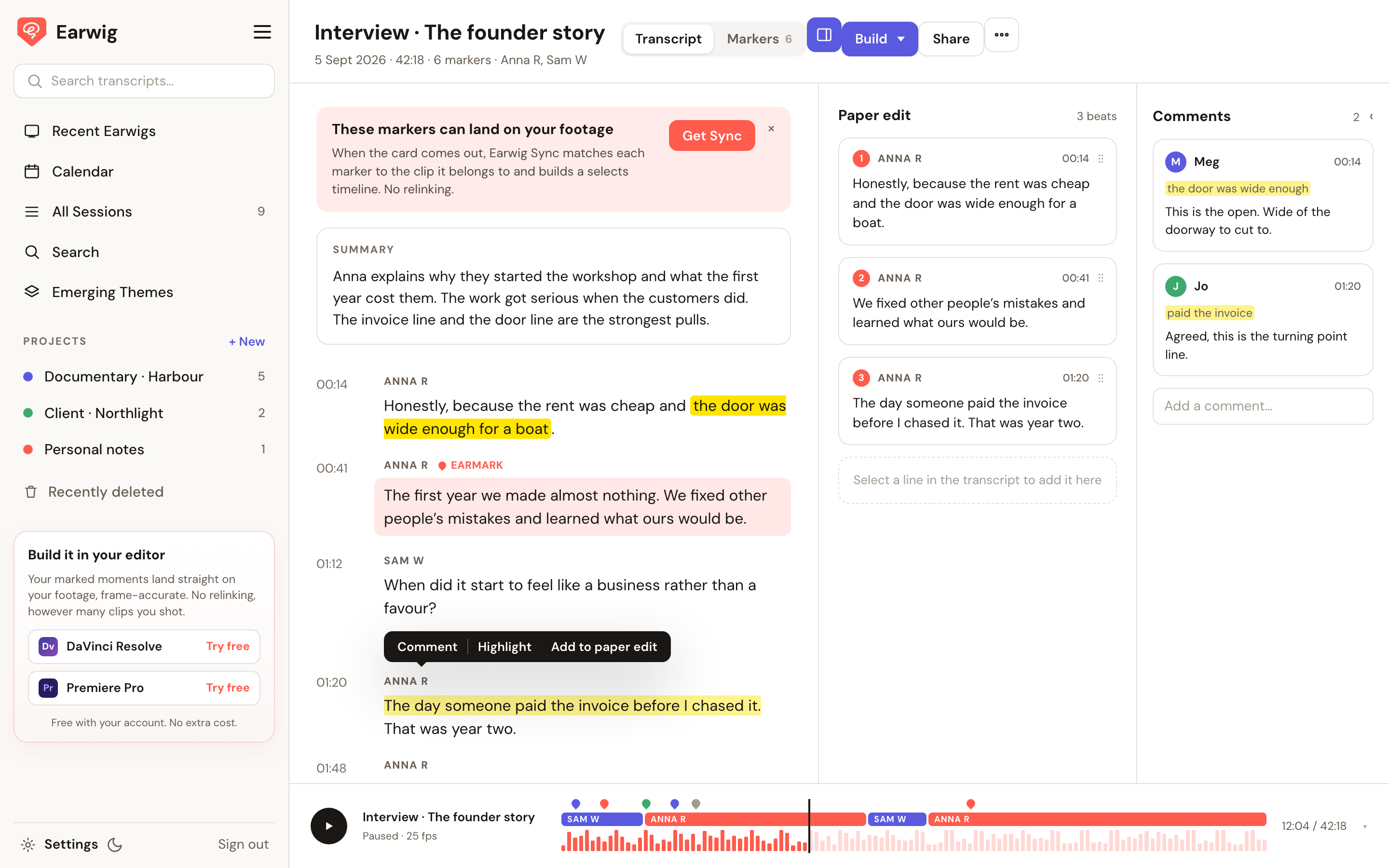
And the web app
Everything is also in the browser at earwig.io/app, on any machine, with the transcript, the markers and the exports in one place. I wrote about that here: earwig.io/field-notes/every-transcript-in-one-place
If you are editing on Windows, I would like to hear how the install goes for you. Reply to this and tell me what you are cutting on.
Downloads: earwig.io/plugins
Comments
No comments yet — be the first.